Video editing has become an essential skill for content creators, YouTubers, filmmakers, businesses, marketers, and social media influencers. Whether you want to create Instagram Reels, YouTube Shorts, cinematic travel videos, promotional advertisements, or professional films, choosing the right editing software can significantly affect your workflow.
Two major approaches dominate modern video editing. The first focuses on simplicity, ready-made templates, quick effects, and social media content. The second emphasizes detailed editing controls, advanced color grading, audio mixing, and complex production workflows.
CapCut is a popular example of the first approach, while traditional professional editors such as Adobe Premiere Pro and DaVinci Resolve represent the second.
But which one is better? Is CapCut powerful enough for professional content, or should you learn a traditional video editor?
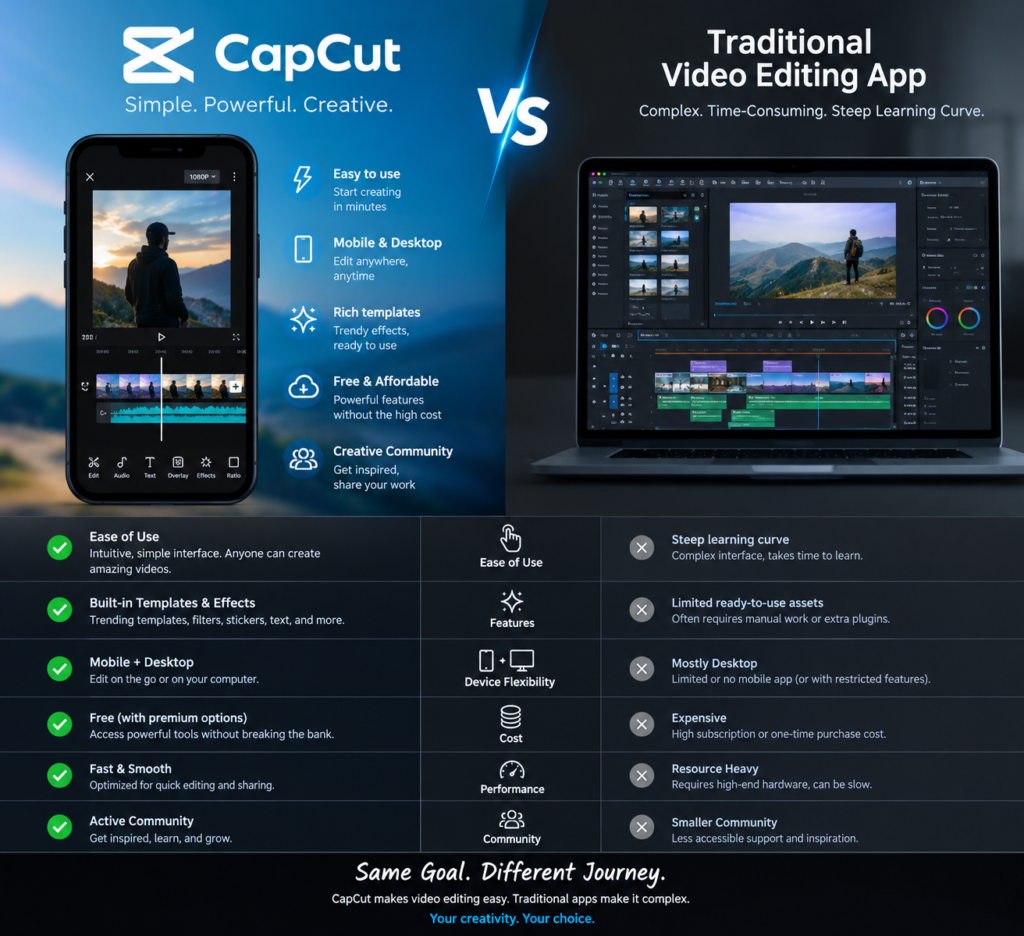
Let’s compare them in detail.
CapCut is a video editing application available across supported mobile, desktop, and web platforms. It is particularly popular among short-form content creators who want to produce engaging videos without spending hours learning complicated editing techniques.
What Is CapCut?
Its creator-focused workflow combines timeline editing with features such as templates, animated text, transitions, effects, automatic captions, and AI-assisted tools. Some features and assets depend on the platform, region, account, or subscription plan.
CapCut is best known for making social media video creation accessible and fast.
Typical uses include:
- Instagram Reels and YouTube Shorts.
- TikTok-style edits and trending videos.
- Travel and cinematic montage videos.
- Talking-head videos with subtitles.
- Promotional videos for small businesses.
- Beginner-friendly YouTube content.
Official website: CapCut
What Are Traditional Video Editing Apps?
Traditional video editing apps are editing programs that offer extensive control over footage, timelines, color, audio, effects, and project organization. Examples include Adobe Premiere Pro, DaVinci Resolve, and Final Cut Pro.
These tools are widely used in professional content production, including documentaries, advertisements, films, branded videos, and long-form YouTube projects.
Their main advantage is the ability to build complex edits with precise control over every stage of production.
For example, Adobe Premiere Pro provides detailed editing, color, audio, effects, and collaboration tools. DaVinci Resolve combines editing, visual effects, color grading, and audio post-production in one application.
Official resources:
CapCut vs Traditional Video Editing Apps: Quick Comparison
| Feature | CapCut | Traditional editors |
| Ease of use | Generally beginner-friendly | Usually requires more learning |
| Learning curve | Low to moderate | Moderate to high |
| Editing speed | Excellent for template-driven social videos | Excellent for complex, repeatable workflows |
| Ready-made templates | Strong creator-oriented focus | Varies by application and third-party resources |
| AI-assisted editing | Captions, effects, and other available AI tools | Advanced AI tools vary by application |
| Color grading | Good for many creator projects | More extensive options in dedicated professional workflows |
| Audio control | Suitable for everyday creator needs | More detailed mixing and post-production options |
| Visual effects | Convenient built-in effects | Greater flexibility in specialized workflows |
| Long-form projects | Suitable for many projects | Often preferable for complex productions |
| Collaboration | Features depend on plan and platform | Advanced collaboration available in selected applications |
| Pricing | Free and paid tiers | Free and paid options, depending on software |
| Best use case | Social media and fast content creation | Complex editing and professional production |
This table describes general tendencies, not absolute limitations. CapCut can handle sophisticated projects, and traditional editors can also be beginner-friendly or fast.
1. Ease of Use and Learning Curve
CapCut: Designed for accessibility
One of CapCut’s biggest advantages is that beginners can start creating videos without mastering a large collection of technical tools.
Its editing workflow makes common tasks relatively straightforward:
- Import video clips and arrange them on a timeline.
- Trim footage and remove unwanted sections.
- Add music, transitions, and sound effects.
- Create animated titles and subtitles.
- Apply filters and visual effects.
- Export a video for the intended platform.
Templates and presets can also help users achieve a polished look without building every effect manually.
For example, a beginner creating a 30-second travel Reel can combine scenic footage, music, transitions, and text without first learning advanced color management or compositing.
Traditional editors: More control, more learning
Professional editing programs generally expose more settings and offer more specialized tools. Users may need to understand timelines, codecs, frame rates, media organization, color correction, audio routing, and project settings.
The initial learning curve can be steeper, especially for someone who has never edited a video before.
However, the additional complexity becomes valuable when projects require detailed adjustments, extensive revisions, or consistent production standards.
Winner: CapCut for beginners and quick results. Traditional editors for users who need deeper control and are willing to invest time in learning.
2. Editing Speed and Workflow
CapCut
CapCut is especially convenient when speed matters more than extensive customization.
Creators can use presets, templates, text animations, and automated tools to reduce repetitive work. This makes it suitable for producing multiple short videos regularly.
A creator who publishes several Reels each week may benefit from a workflow that prioritizes quick assembly, subtitles, music, and social-friendly exports.
However, templates can become restrictive when every shot, transition, and animation needs precise individual adjustment.
Traditional editing apps
Professional editors may take longer to learn, but they offer efficient workflows for complex projects.
Editors can organize large media libraries, use keyboard shortcuts, build reusable sequences, refine edits frame by frame, and manage detailed audio and color adjustments.
Once an editor becomes proficient, a traditional application can be highly efficient for long-form content, commercial projects, and repeated production tasks.
Winner: CapCut for fast, template-driven short-form content. Traditional editors for complex projects that require detailed control and repeatable workflows.
3. AI Features and Automation
AI-assisted editing can reduce the time spent on repetitive tasks, but the tools available differ between applications and subscription plans.
CapCut
Depending on platform and plan, CapCut offers creator-oriented tools such as automatic captions, AI-assisted effects, and other automated content features.
These tools can help users create subtitles, enhance presentation, and speed up routine editing tasks.
For example, a talking-head video can benefit from automatically generated captions, animated text, and quick formatting for a vertical social media layout.
Traditional editors
Professional editors also increasingly use AI.
Adobe Premiere Pro offers features including text-based editing, speech enhancement, media search, and AI-assisted masking. DaVinci Resolve Studio includes additional AI-powered tools for tasks such as object isolation, tracking, and noise reduction.
These capabilities are particularly useful when the editor needs to process large amounts of footage or make precise adjustments.
Winner: Neither wins in every situation. CapCut is convenient for accessible creator-oriented automation, while professional applications can offer more specialized tools for demanding production workflows.
4. Color Grading and Cinematic Quality
Color grading helps establish the mood of a video. It can make a travel film feel warm and nostalgic, a commercial feel polished, or a dramatic sequence feel dark and intense.
CapCut
CapCut offers filters and color adjustments that can significantly improve the appearance of everyday footage. It is capable of producing attractive cinematic-style videos when combined with good lighting, thoughtful shot selection, and appropriate editing.
However, applying a cinematic filter is not the same as performing a detailed color-grading workflow.
Traditional editors
DaVinci Resolve is particularly strong in color correction and grading. Its professional toolset supports detailed adjustments, color matching, scopes, and advanced grading workflows.
Premiere Pro also provides extensive color controls, including curves, color wheels, and other grading tools.
These capabilities matter when working with footage from different cameras, log footage, carefully controlled commercial looks, or demanding delivery requirements.
Winner: Traditional professional editors, particularly DaVinci Resolve, for advanced color grading. CapCut remains capable for many social media and creator projects.
5. Transitions, Effects, and Motion Graphics
CapCut
CapCut makes it easy to add transitions, animated text, filters, effects, and visual enhancements. Its ready-made assets are useful when creating energetic, trend-driven videos.
This is especially convenient for creators who want an engaging result without designing every animation from scratch.
The main limitation is creative consistency: relying too heavily on popular presets can make different videos look similar.
Traditional editors
Premiere Pro offers customizable effects, masks, motion controls, and graphics workflows. More complex motion graphics can be created using specialized software such as Adobe After Effects.
DaVinci Resolve includes its Fusion environment for compositing and motion graphics, alongside its editing tools.
These workflows provide more flexibility for custom titles, product animations, screen replacements, visual effects, and brand-specific designs.
Winner: CapCut for convenience and quick effects. Traditional editors for highly customized motion graphics and complex visual effects.
6. Audio Editing and Sound Design
Audio quality is one of the most important differences between a casual edit and a polished production.
CapCut
CapCut is suitable for common audio tasks, including:
- Adding music and sound effects.
- Adjusting volume.
- Synchronizing music with footage.
- Recording or incorporating voiceovers.
- Creating simple sound-driven edits.
These tools are sufficient for many short-form videos and promotional clips.
Traditional editors
Professional applications provide more detailed audio workflows.
Premiere Pro offers audio effects, mixing controls, speech enhancement, and tools for managing dialogue and soundtracks. DaVinci Resolve includes Fairlight, a dedicated audio post-production environment.
These capabilities are useful for documentaries, interviews, advertisements, and projects involving multiple microphones, dialogue tracks, ambience, music, and sound effects.
Winner: Traditional editors for advanced audio mixing and sound post-production. CapCut is often sufficient for everyday social content.
7. Export Quality and Video Formats
A common misconception is that videos exported from professional editing software are automatically higher quality.
In reality, final quality depends on several factors, including:
- Original footage quality.
- Timeline and project settings.
- Export resolution and frame rate.
- Bitrate and codec.
- Compression settings.
- The requirements of the destination platform.
CapCut can produce high-quality exports suitable for many online videos, provided the chosen settings and source footage are appropriate.
Traditional editors generally provide extensive control over professional delivery workflows, supported codecs, color management, and export settings.
This can matter when preparing deliverables for clients, broadcast, archiving, or specialized distribution.
Winner: Traditional editors for complex delivery requirements and detailed encoding workflows. For ordinary social media publishing, either approach can produce excellent results.
8. Pricing: Free vs Paid Editing Software
Pricing is an important factor for beginners, freelancers, and businesses.
CapCut pricing
CapCut offers a free tier and paid plans. The free version provides basic editing capabilities, while paid plans can unlock additional premium assets, features, storage, and AI capabilities.
The exact features and prices can change depending on the country, platform, and subscription offer.
Check the official CapCut pricing page for current details.
Traditional editing software pricing
Traditional editors offer different pricing models.
- Adobe Premiere Pro: Paid subscription software.
- DaVinci Resolve: A feature-rich free version and a paid Studio edition.
- Final Cut Pro: A paid editor for Apple platforms, with current purchasing options determined by Apple.
DaVinci Resolve is especially worth considering for users who want extensive professional editing capabilities without paying for a subscription to access its core free version.
Check the official DaVinci Resolve website for current editions and pricing.
Winner: It depends on your budget and requirements. CapCut can be an economical starting point, while DaVinci Resolve offers an unusually capable free professional workflow. Compare paid features before subscribing.
9. Performance and Hardware Requirements
The editing experience depends on your computer or phone, the resolution of your footage, the effects being used, and the complexity of the project.
CapCut
CapCut is accessible across supported mobile and desktop platforms. This makes it attractive to creators who want to edit on a phone or use a relatively straightforward desktop workflow.
Nevertheless, demanding effects, high-resolution footage, and AI processing can still require substantial computing resources.
Traditional editors
Professional applications can handle complex projects, but performance depends heavily on hardware and workflow choices.
High-resolution footage, advanced effects, noise reduction, and color grading may benefit from a capable processor, sufficient memory, and a suitable graphics processor.
Proxy workflows, optimized media, and sensible project settings can help manage demanding footage.
Winner: Neither universally. CapCut may feel simpler for basic projects, but actual performance should be tested on the hardware and footage you intend to use.
10. Which App Is Better for Different Types of Users?
| User type | Recommended starting point | Why |
| Complete beginner | CapCut | Easier entry into video editing |
| Instagram Reels creator | CapCut | Quick vertical edits, captions, and effects |
| YouTube Shorts creator | CapCut | Convenient short-form workflow |
| Travel video creator | Either | Depends on how much grading and customization is needed |
| Professional YouTuber | Either | CapCut for speed; Premiere or Resolve for complex production |
| Wedding filmmaker | Premiere Pro or Resolve | Greater control over long-form editing and finishing |
| Commercial video editor | Premiere Pro or Resolve | Flexible professional workflows |
| Color-grading specialist | DaVinci Resolve | Extensive dedicated grading tools |
| Motion graphics designer | After Effects or Fusion workflows | More specialized animation and compositing |
| Budget-conscious professional | DaVinci Resolve Free | Extensive professional features at no software cost |
These are starting recommendations rather than strict rules. An experienced creator may use CapCut for client work, and a beginner can learn a traditional editor with practice.
11. Advantages and Disadvantages of CapCut
Advantages
- Beginner-friendly editing experience.
- Convenient tools for short-form content.
- Ready-made templates, effects, and animated text.
- Useful automated and AI-assisted features.
- Supported mobile, desktop, and web workflows.
- Free entry point with optional paid upgrades.
Disadvantages
- Some features and assets require payment.
- Available tools can differ by platform and region.
- Advanced color, audio, and compositing workflows may be less flexible than in specialized professional applications.
- Heavy reliance on presets can reduce originality.
- Some template and asset workflows are platform-dependent.
12. Advantages and Disadvantages of Traditional Editing Apps
Advantages
- Extensive timeline and editing controls.
- Advanced color correction and grading.
- More specialized audio post-production options.
- Greater flexibility for complex visual effects.
- Professional media management and delivery workflows.
- Suitable for large, long-form, and demanding projects.
Disadvantages
- A steeper learning curve for many beginners.
- Some leading applications require paid subscriptions or licenses.
- Complex projects can demand more powerful hardware.
- Advanced workflows may require additional applications or technical knowledge.
- Building effects and graphics from scratch can take more time than applying a preset.
13. Can CapCut Replace Professional Editing Software?
The answer depends on the type of work.
For social media videos, basic advertisements, creator content, and many short promotional projects, CapCut can be sufficient. A skilled editor can create compelling results with thoughtful storytelling, strong footage, good pacing, and effective sound design.
However, a professional workflow may require detailed color grading, complex compositing, extensive audio mixing, precise media management, or specialized delivery formats. In these situations, Premiere Pro or DaVinci Resolve may be a better fit.
It is also important to remember that software alone does not make a video professional. Storytelling, shot selection, lighting, sound, editing rhythm, and creative judgment all influence the final result.
The practical conclusion: CapCut can replace a traditional editor for some workflows, but it does not eliminate the need for specialized tools in every professional production.
14. Should You Learn CapCut or a Traditional Video Editor First?
If you are new to video editing, start with the application that helps you finish projects consistently.
Choose CapCut first if you want to learn:
- Cutting and arranging clips.
- Matching edits to music.
- Adding subtitles and titles.
- Creating social media videos.
- Using transitions and effects.
- Exporting content for online platforms.
Choose Premiere Pro or DaVinci Resolve first if your goal is to work on complex commercial projects, films, advanced color grading, or professional post-production.
You can also learn both. Start with CapCut to understand editing fundamentals, then move to a professional editor when your projects demand more control.
The skills you develop in one application—storytelling, timing, pacing, composition, and sound—will help you in the others.
Frequently Asked Questions
Is CapCut better than Premiere Pro?
CapCut is generally easier for beginners and quick social media editing. Premiere Pro offers extensive control over editing, color, audio, effects, and professional workflows. The better choice depends on the project.
Is CapCut good for professional video editing?
Yes, for many types of creator content and short promotional videos. For complex post-production, detailed grading, or specialized delivery requirements, a professional editor may be more suitable.
Is CapCut free?
CapCut offers a free tier and paid plans. Some premium features, assets, and AI capabilities may require a subscription or additional payment. Check the official pricing page for current terms.
Is DaVinci Resolve better than CapCut?
DaVinci Resolve is generally stronger for advanced color grading, detailed audio post-production, and complex finishing workflows. CapCut is often easier for fast, template-driven social content. Resolve also offers a substantial free version.
Which editor is best for YouTube videos?
Both can work well. CapCut is convenient for Shorts and straightforward videos. Premiere Pro and DaVinci Resolve are strong choices for complex long-form videos, detailed sound design, and more demanding production workflows.
Can beginners learn professional video editing software?
Yes. Beginners can learn Premiere Pro or DaVinci Resolve by starting with basic cuts, timelines, titles, audio, and export settings. The learning process may take longer, but it can provide a foundation for more advanced projects.
Which video editor is best for cinematic videos?
DaVinci Resolve is an excellent choice for advanced cinematic color grading. Premiere Pro is also capable of producing polished cinematic videos. CapCut can create cinematic-looking content, especially when the source footage, editing, lighting, and sound are strong.
Final Verdict: CapCut vs Traditional Video Editing Apps
There is no single video editor that is best for everyone.
CapCut stands out for accessibility, creator-friendly tools, and fast social media production. Traditional applications such as Premiere Pro and DaVinci Resolve stand out when projects require deeper control over editing, grading, audio, effects, and professional delivery.
If your priority is producing attractive videos quickly, start with CapCut. If your goal is to develop advanced post-production skills, consider learning Premiere Pro or DaVinci Resolve.
Ultimately, the best editor is the one that fits your creative goals, budget, hardware, and workflow.
A final tip: Learn the fundamentals of storytelling and sound design before focusing too heavily on effects. A well-told story with simple edits is often more effective than a video overloaded with transitions and presets.